WIVRA / PRACTICAL GUIDE
Edit poster text. Start with one clear change.
Only have a JPG or PNG of the finished poster? Try a local AI edit: select the wording, describe its exact replacement, then inspect the result. Here is the Wivra workflow and what to check.
Open the poster editorFour steps to a result you can review
Start with a clear original
Upload a PNG, JPG or WebP you have permission to edit. A flattened export is enough to try; you do not need a PSD. Choose the sharpest, straight-on version. Tiny lettering, curved text and complex textures are harder to reconstruct.
Select the whole line, with a little background
Choose Region, draw a box, then drag its bottom-right corner around the complete old line and a small margin. Avoid including an unrelated logo or QR code. Leave enough room if the replacement is longer.
Specify the exact old and new wording
Put the replacement in quotes and state which font style, position and color to keep. Start with one change, save the note, then generate. You can add up to 20 annotations, but separate complex edits are easier to review.
Compare, inspect and download
Drag the comparison divider and check every letter, edge and position before downloading the PNG. A failed generation keeps your annotations. Keep the page open while it processes and do not submit the same edit repeatedly.
Specific prompts you can adapt
These are instruction examples, not verified outputs or accuracy guarantees. Replace the quoted wording with your own.
Event date
Replace “OCT 1, 2026” with “OCT 15, 2026” on the bottom date line. Keep the font style, size, color and position. Leave everything else unchanged.
Headline
Replace “AUTUMN MARKET” with “WEEKEND MARKET”. Keep it on one line, centered in the same position. Do not add decorations.
Price
Replace only “$199” with “$159” inside the selection. Keep the currency symbol, type style and background. Do not change the product image.
A real local color-edit test
On September 28, 2026, we changed a red square to green on the live site and downloaded the result. These are the actual files, with no retouching. This demonstrates generation and download, not text-editing accuracy.
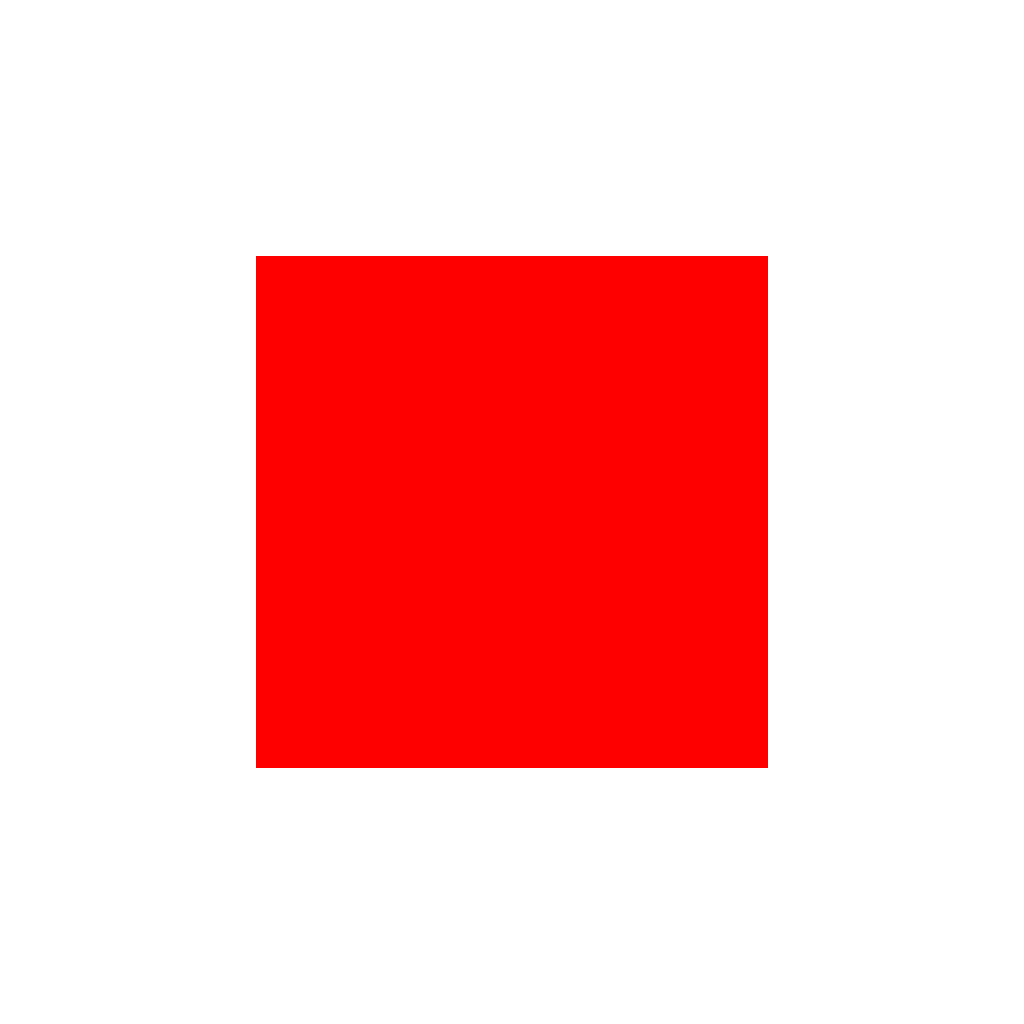
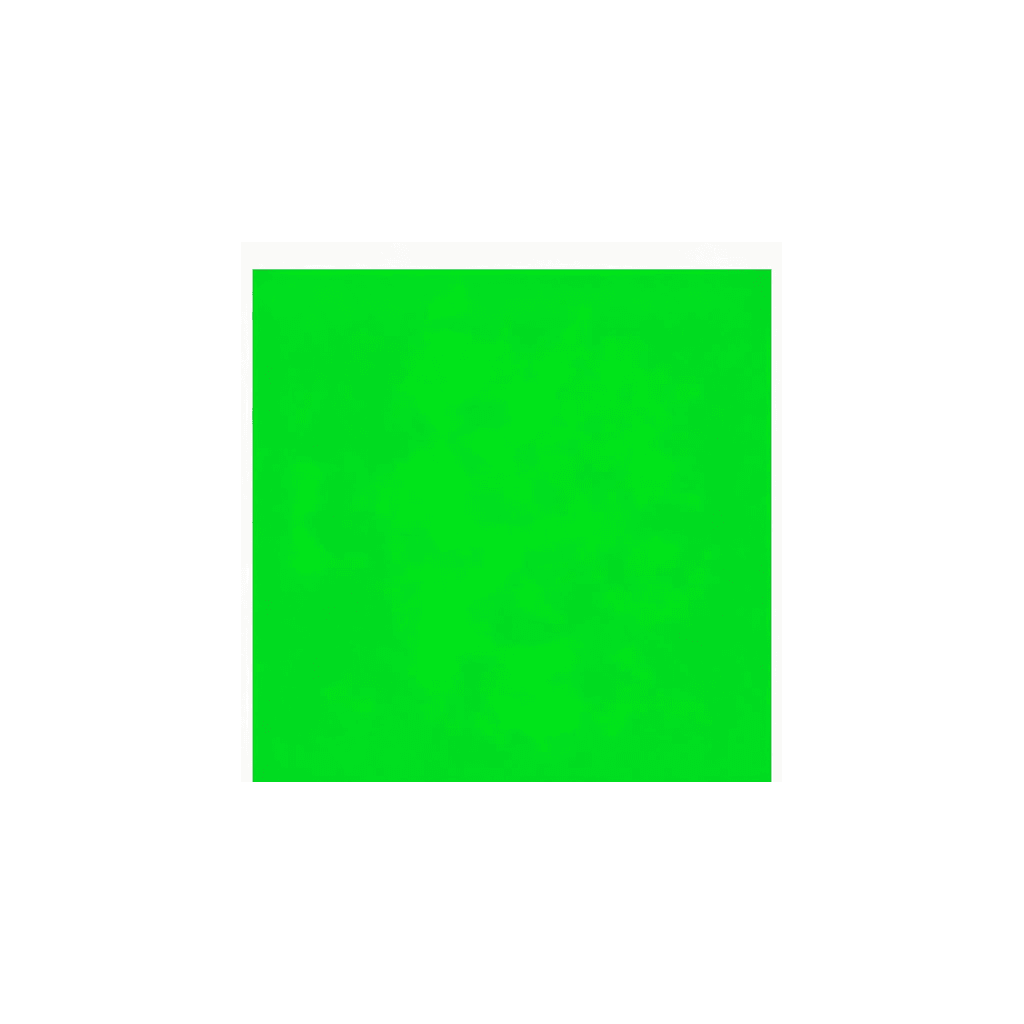
Local edits ask the service to preserve the surrounding image; exact pixel preservation depends on the provider. Review the result. Use Layout to move or resize a region and submit both its source and destination. An overall direction allows full-image changes.
Troubleshoot before trying again
| Issue | What to check |
|---|---|
| Only part of the target changes | Include the complete target and ask to change the entire existing object, rather than adding a smaller copy. |
| A word or font looks wrong | Use a shorter instruction with the exact replacement and edit that line alone. AI does not guarantee exact spelling or a perfect typeface match. |
| A seam appears at the boundary | Place the boundary in a simple background. Avoid cutting across letters, shadows or object edges; add a little margin and retry. |
| The print looks soft | Check the downloaded dimensions. Wivra prepares inputs at a maximum 1800-pixel long edge and may reduce them further to fit the upload limit. It is not a vector layout or large-format print workflow. |
Before publishing or printing
- Are the date, time, price and address correct character by character?
- Do spacing, placement, edges and background look right? Does any QR code still scan?
- Has the PNG actually saved, does it open, and is its resolution suitable?
- For critical print work, brand lettering, legal wording or exact layout, prefer a manual edit in the original design file.
Selection and annotation happen in your browser. Generating sends the image and request to an AI service. Do not upload sensitive images.